Staying out of the way
Smart Pause
Pauselle waits while you are on a call, sharing your screen, in a meeting, deep in focus or playing a game.
Smart Pause keeps breaks from interrupting the moments that matter. When it notices one of the activities below during a work session, it pauses the work timer. When the activity ends and a short cooldown passes, Pauselle resumes on its own.
Find it in Settings → Smart Pause.
Automatically pause Pauselle during
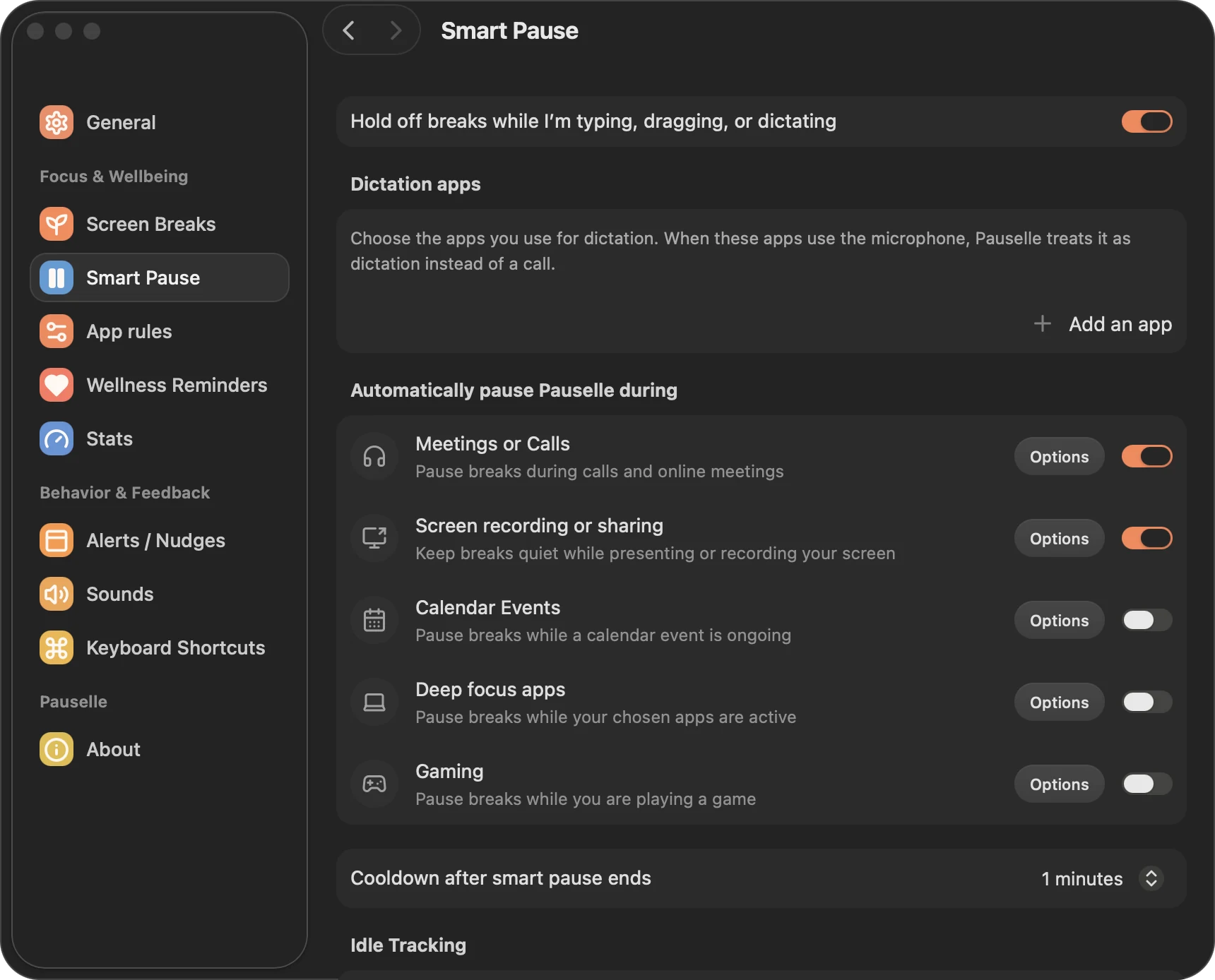
| Activity | Default | How it is detected |
|---|---|---|
| Meetings or Calls | On | An app is using a microphone |
| Screen recording or sharing | On | macOS reports that the screen is being captured |
| Calendar Events | Off | An event is happening now in a calendar you selected |
| Deep focus apps | Off | An app you chose is open, in front, or full screen |
| Gaming | Off | The app in front is a game |
A switch is dimmed if that kind of detection isn’t available on your Mac. Click Options next to an activity to configure it.
If more than one activity is happening, Pauselle shows the most important one: screen sharing, then calls, then calendar events, then deep focus apps, then games.
What you see
- The menu bar shows the reason, for example On a Call, Sharing or Deep Focus.
- Quick Look explains why Pauselle is paused and that it will resume automatically.
- If alerts are on for that activity, a small notice appears for a few seconds. See Alerts & nudges.
Ignore till next break
Want your breaks anyway? Choose Ignore till next break in the menu or in Quick Look. Pauselle resumes right away and ignores detections until your next break begins.
Good to know
- Smart Pause pauses work time. It never cuts a break short.
- If you paused Pauselle yourself, Smart Pause leaves it paused.
- If Pauselle cannot tell whether an activity has ended (for example because a permission was removed), it stays paused rather than guessing.
Cooldown after Smart Pause ends
Cooldown after smart pause ends sets how long Pauselle waits after the activity stops before it resumes: None, 30 seconds, 1 minute (default), 2 minutes or 5 minutes. During the cooldown Quick Look shows Resuming soon. If the activity starts again, the cooldown starts over.
Meetings or Calls
Pauselle looks at which apps are using a microphone. It reads only that activity information from macOS: it never records, opens or listens to any audio.
Options:
- Allowed microphones: choose which physical and virtual microphones count. By default, all of them do.
- Excluded Apps: apps whose microphone use should never pause Pauselle.
- Show an alert when a meeting is detected (on by default).
Dictation apps
On the main Smart Pause page, add the apps you use for dictation. When one of these apps uses the microphone, Pauselle treats it as dictation instead of a call: it does not pause, but a due break waits while you are dictating.
Screen recording or sharing
Pauselle checks the system flag that says the screen is being captured, so it works with any sharing or recording app. It never reads what is on your screen. Because macOS does not say which app is sharing, per-app exclusions are not available for this activity.
Calendar Events
- Click Grant permissions… and allow calendar access. macOS calls this permission Full Access.
- Under Choose calendars, select the calendars to watch. If none are selected, nothing is monitored.
Options:
- Only pause for busy events (on by default): events marked Free are ignored.
- Show an alert when a calendar event is active (off by default).
All-day and canceled events are always ignored. Pauselle never edits your events and never stores titles, locations, notes or attendees.
Deep focus apps
Add the apps you don’t want to be interrupted in, such as a video editor or a presentation tool. For each app choose when Pauselle should pause:
- When Open: the app is running.
- When in Foreground: the app is the one you are using.
- When in Foreground & Fullscreen: the app is in front and full screen. This one needs the macOS Accessibility permission (System Settings → Privacy & Security → Accessibility).
Show an alert when a deep focus app is active is off by default.
Gaming
Pauselle pauses while the app in front declares itself a game to macOS (the Games app category). Add games that should still allow breaks under Excluded Apps. Games that don’t declare a category can be added as a deep focus app instead. Show an alert when a game is active is off by default.
Wait for a quiet moment
Hold off breaks while I’m typing, dragging, or dictating is on by default. If a break is due while you are typing, dragging something or dictating, the break waits until you stop for a moment, so it never appears mid-sentence. The menu bar shows Typing, Dragging or Dictating while it waits.
Idle tracking
The Idle Tracking section on the same page controls what happens when you step away. See Idle tracking.