Everyday use
Menu bar & Quick Look
Check the next break at a glance, and control Pauselle from the menu bar.
Pauselle lives in the menu bar as Robin. There’s no Dock icon and no window to keep open.
Live status in the menu bar
Next to Robin, Pauselle shows what it is doing:
- Time left until the next break, for example 20m (or 20:00 with the clock timer style).
- Break and the time left during a break.
- The reason when Pauselle is waiting: Paused, Idle, On a Call, Sharing, Deep Focus, Gaming, Calendar, Resuming, Off hours, Typing, Dragging, Dictating.
- Off when Pauselle is stopped.
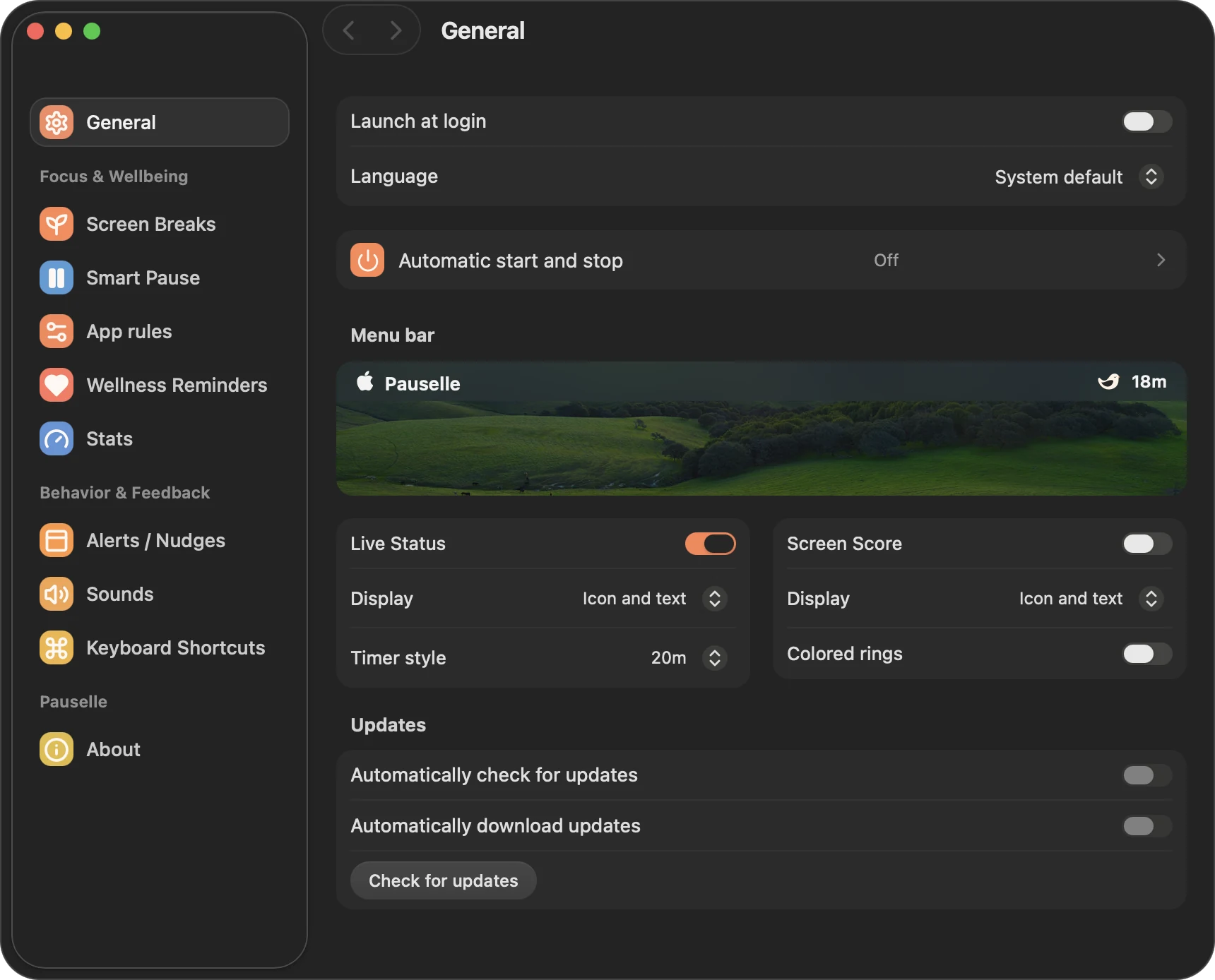
Change this in Settings → General → Menu bar:
| Setting | Options |
|---|---|
| Live Status | On (default) or off |
| Display | Icon and text (default), Icon only, Text only |
| Timer style | 20m (compact, default) or 20:00 (clock) |
| Screen Score | Show your break score as a ring next to Robin. Off by default |
| Display (Screen Score) | Icon and text, Icon only, Text only |
| Colored rings | Color the score ring. Off by default |
Quick Look
Click Robin to open Quick Look. It has two tabs:
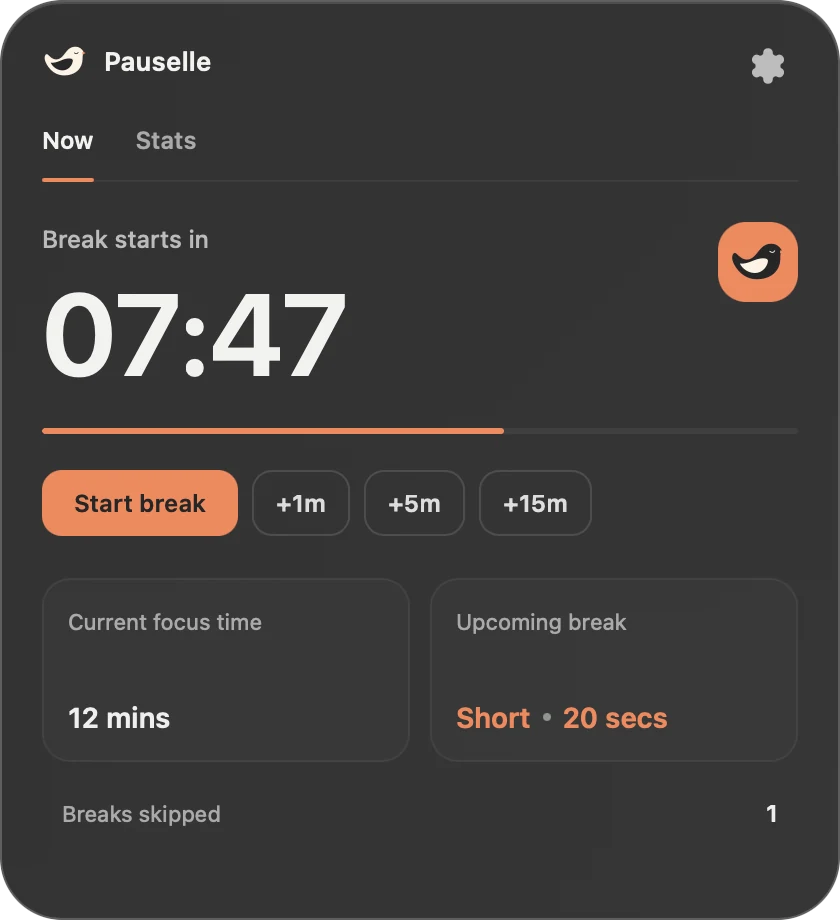
- Now: the current session, time until the next break and whether it is short or long, and buttons to Take a break, snooze or resume. When Pauselle is paused, it explains why.
- Stats: your screen score, breaks and screen time for today. See Stats.
The menu
Open the gear menu in Quick Look. What you see depends on what Pauselle is doing.
While you work
- A status line, for example Short break · 20 secs · in 12m.
- Start this break now.
- Skip this upcoming break, if you still have advance skips today.
- Delay break by 1, 5 or 15 minutes, within your snooze limits.
- Pause breaks: Until I resume, or for 10, 15, 30 or 45 minutes, or 1, 2, 4, 8 or 24 hours. Pauselle resumes on its own when the time is up.
While Smart Pause is active
- Why Pauselle is paused, and Ignore till next break.
Otherwise
- Start Pauselle, Resume Pauselle or Pause Pauselle.
Always
- Fullscreen Clock.
- Take a break for 1, 5, 10, 15 or 30 minutes, or Custom duration… (30 seconds to 2 hours).
- Stop Pauselle (⌘ ⇧ T): ends the session. Start again from the menu.
- Settings… (⌘ ,), Documentation, Roadmap and Feedback, Check for updates…, About… and Quit.
Fullscreen Clock
Fullscreen Clock shows your current session as a large timer that covers the screen, which is handy for reading, studying or a presentation rehearsal. It does not start a new session.
- You can Pause, Resume or Start timer from the clock.
- While the clock is open, idle pause and reset are suspended, so reading time keeps counting.
- Breaks and office hours still apply.
- Press Esc or Exit fullscreen to close it.