Breaks
The break screen
What happens during a break, how strict breaks are, and how to make the break screen your own.
When a break starts, Pauselle covers every display with a calm screen. It shows a title, a short suggestion, a progress bar and a countdown. When the countdown reaches zero the break ends and work time starts again.
During a break
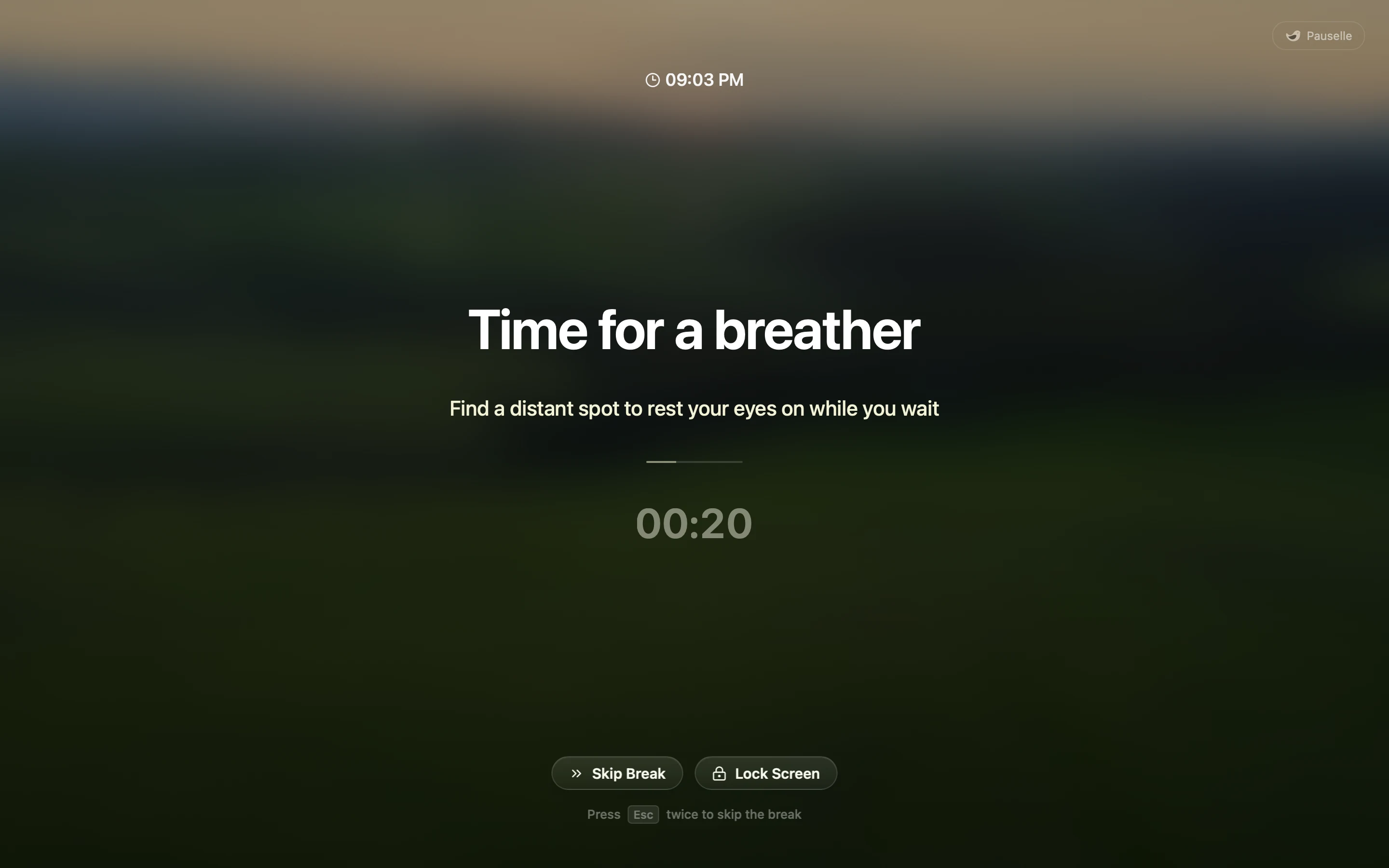
- Skip Break ends the break early. Depending on your break enforcement it may be delayed or unavailable.
- Lock Screen locks your Mac right away, which is handy if you are walking away. You can hide this button (see Content).
- Esc twice: pressing Esc two times quickly skips the break, or snoozes it, depending on More options.
- While the break screen is up, shortcuts that would switch apps, Spaces or windows are blocked so the break can do its job. Force Quit (⌥ ⌘ Esc) always works.
- Pauselle cannot be quit during a break.
The countdown shows on your main display. Turn on Show countdown on all screens to show it on every display.
Break enforcement
Choose how strict breaks are in Settings → Screen Breaks → Break enforcement.
| Level | What it means |
|---|---|
| Casual (default) | Skip any time. |
| Balanced | Skip becomes available after the first 5 seconds of the break. |
| Hardcore | No skipping and no snoozing. An active break cannot be replaced with a different break. The Esc shortcut is turned off. |
Skips and snoozes
| Setting | Default | Options |
|---|---|---|
| Advance skips allowed per day | None | None, 1, 2, 3, 5, No limit |
| Snoozes allowed per day | No limit | None, 1–10, No limit |
| Snoozes allowed per break | No limit | 1–5, No limit |
An advance skip lets you skip the upcoming break before it starts, from the menu (Skip this upcoming break). The work timer starts over and the break is recorded as skipped. Snoozes delay a break by 1, 5 or 15 minutes. Limits reset every day. In Hardcore mode neither is available.
More options
- Double escape action on break screen: Skip the break (default), Snooze for 1 minute or Snooze for 5 minutes.
- Let me “End Break” early if nearly done: the button changes to End Break in the last 10% of the break (at most the last 10 seconds).
- Keep the break screen up until I press “End Break”: the break screen stays when the countdown finishes, and the next focus session waits until you press End Break.
- Lock my Mac automatically when a break starts.
Customize the break screen
Open Settings → Customize Break Screen, or Screen Breaks → Customize break screen. Press Show Preview to see your changes on screen.
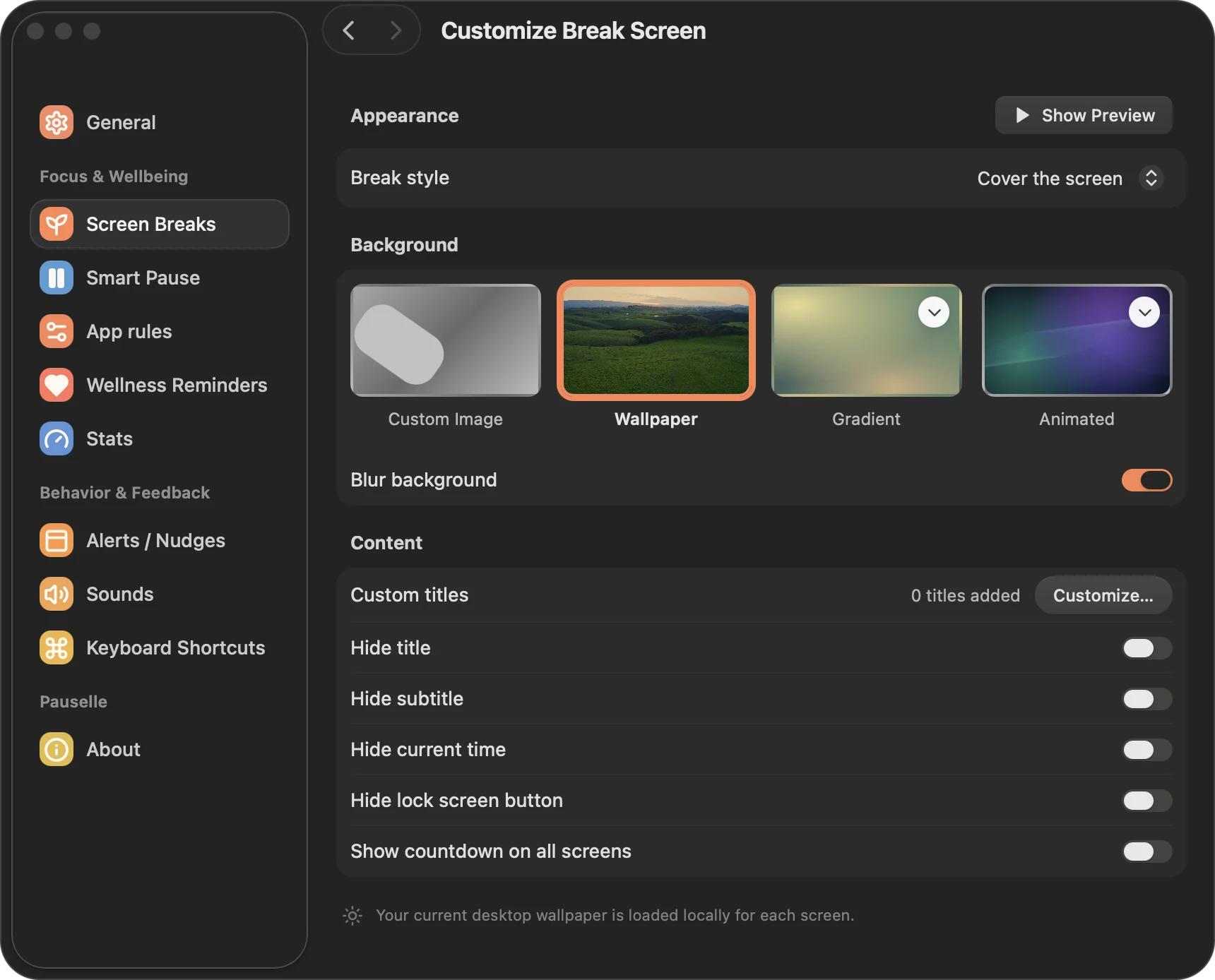
Break style
- Cover the screen (default): a full-screen background of your choice.
- Split the screen: a darker, textured screen. Background choices do not apply to this style.
Background
Available with Cover the screen:
- Wallpaper (default): your current desktop wallpaper, loaded locally for each display.
- Custom Image: pick an image from your Mac. It stays on your Mac.
- Gradient: choose one of the built-in gradients.
- Animated: choose one of the built-in animations, or a random one each time.
For Wallpaper and Custom Image, Blur background softens the picture (on by default). All built-in backgrounds work offline.
Content
- Custom titles: add your own break titles. Pauselle picks one at random for each break. Short and long breaks have separate lists.
- Hide title, Hide subtitle, Hide current time.
- Hide lock screen button.
- Show countdown on all screens.