A little room to breathe.
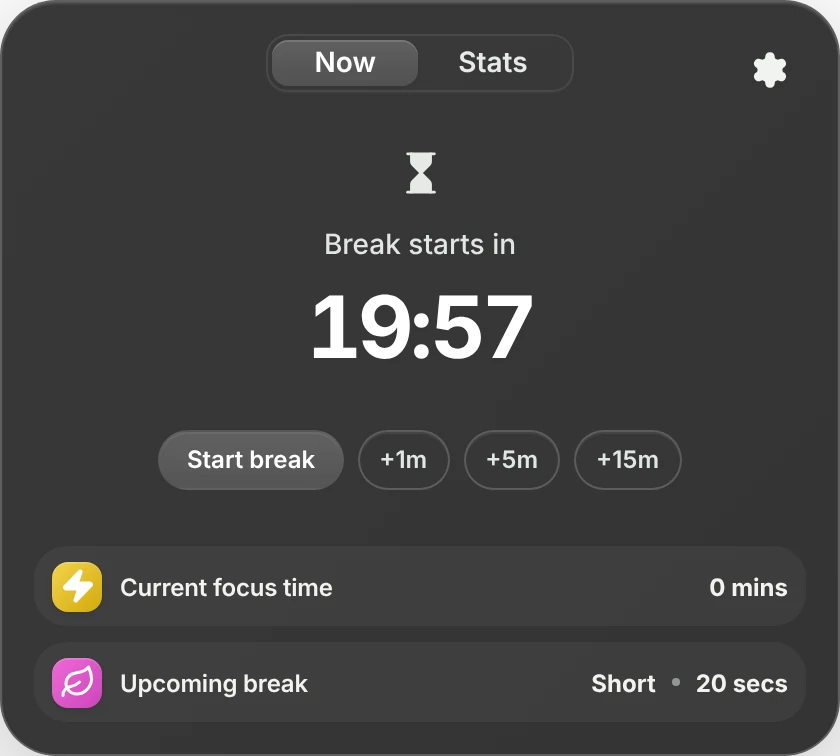
Pauselle sits in your Mac’s menu bar and reminds you to look away, sit up and blink. When you’re on a call, sharing your screen or deep in focus, it waits.
How a break goes
Every 20 minutes, look at something 20 feet away for 20 seconds. Pauselle handles the timing, so you only have to look up.
- 1
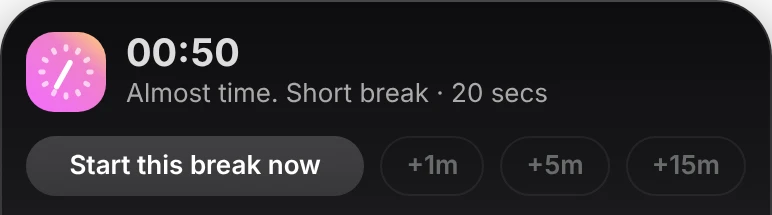
A heads-up first
A small note arrives a minute before. Start now, or snooze for 1, 5 or 15 minutes.
- 2
A countdown at your cursor
The last seconds show up right where you’re looking. If you’re typing or dragging, it waits until you stop.
- 3
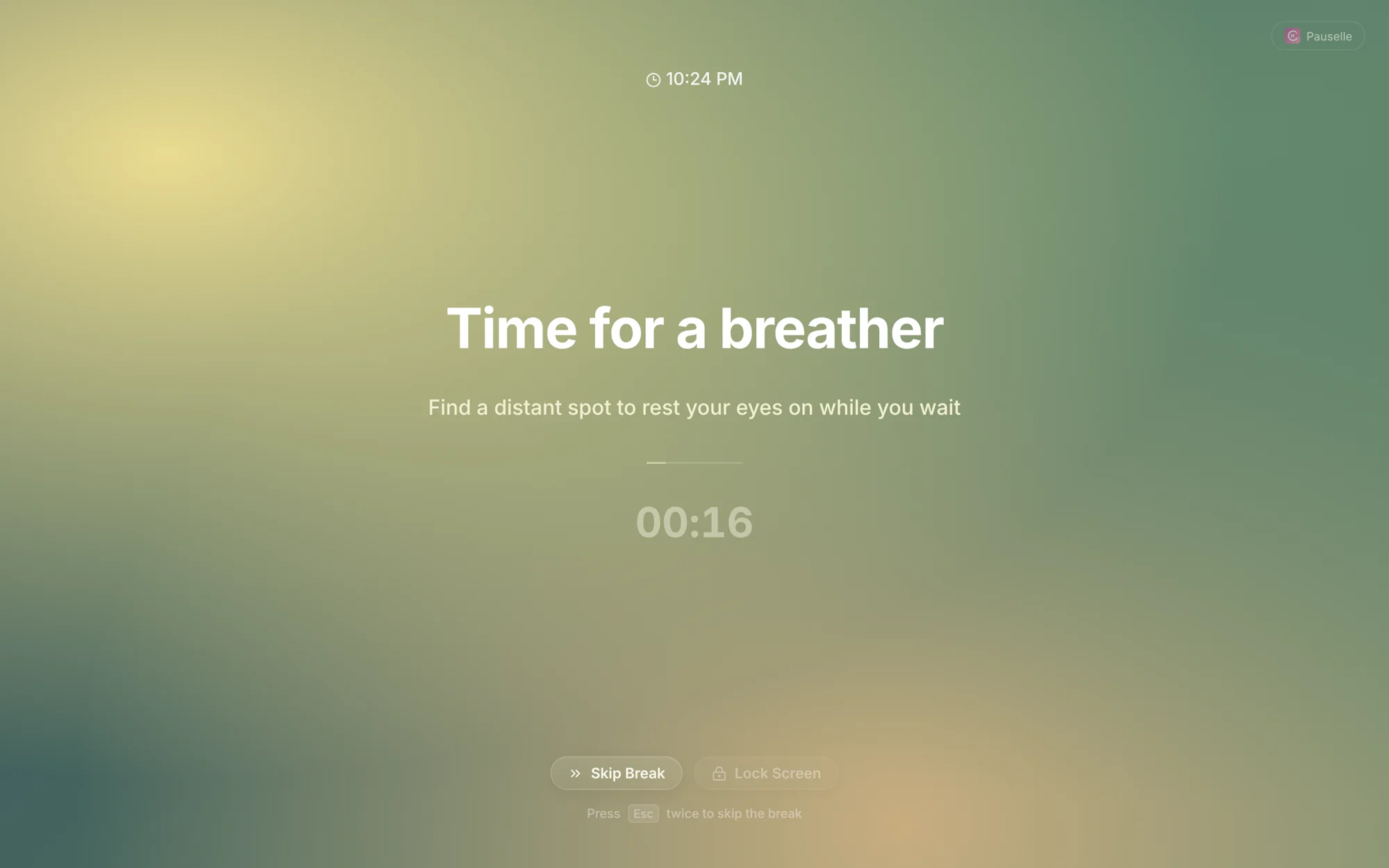
The screen steps aside
Your wallpaper, a photo, a gradient or a slow animation covers every display, with a clock and soft chimes.
- 4
Back where you left off
Your windows return and the timer starts over. Your stats count the break, and the next one is 20 minutes away.
It knows when not to interrupt
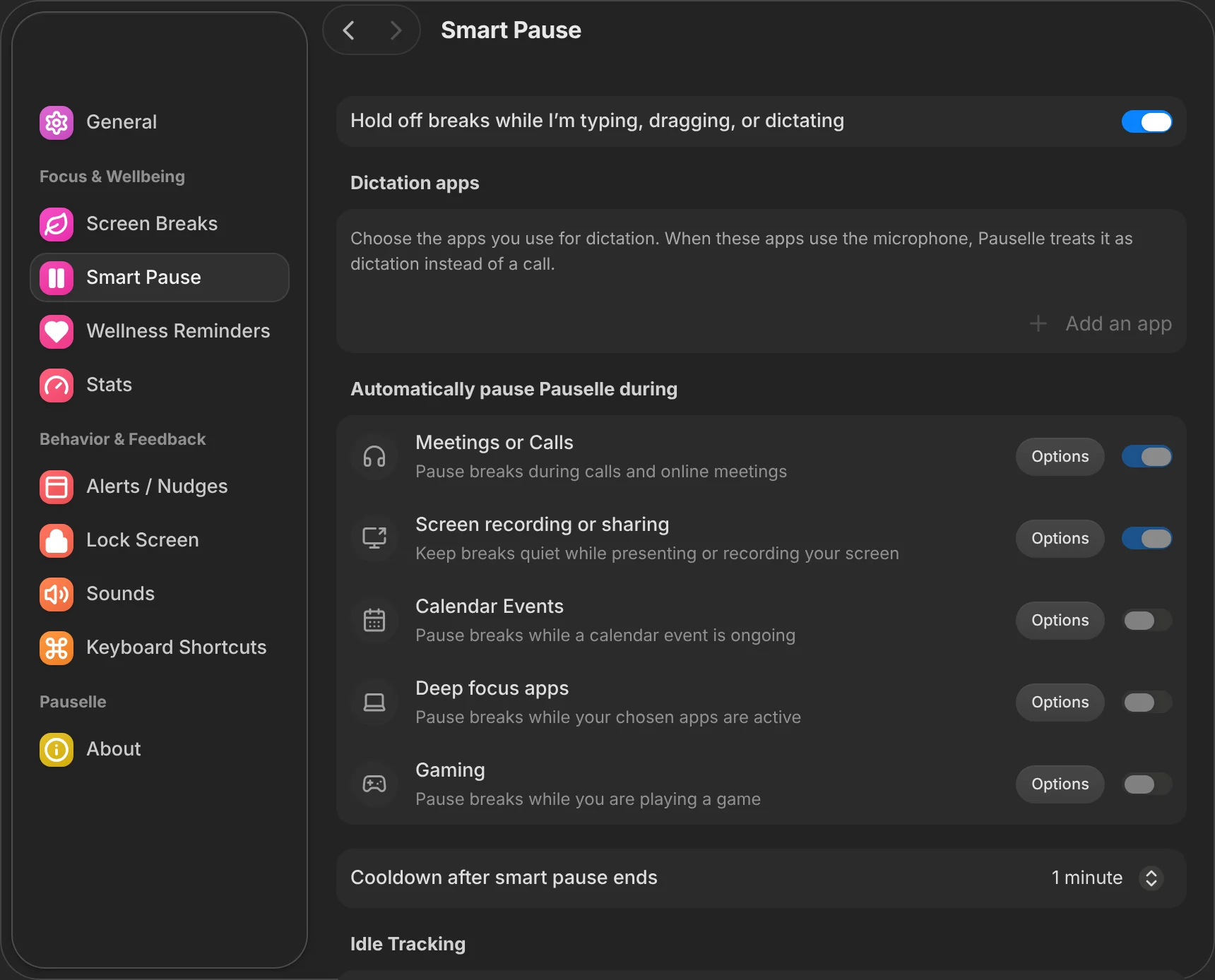
Smart Pause holds the timer while you’re busy and picks it up again when you’re done. You don’t have to remember to turn anything off.
- You’re on a callMicrophone in usePaused
- You’re presentingScreen sharing or recordingPaused
- You’re heads-downApps you mark as Deep FocusPaused
- You’re playingFullscreen gamesPaused
- You’re in a meetingApple Calendar events you choosePaused
- Then you’re freeNothing in the wayNext break in 12:40
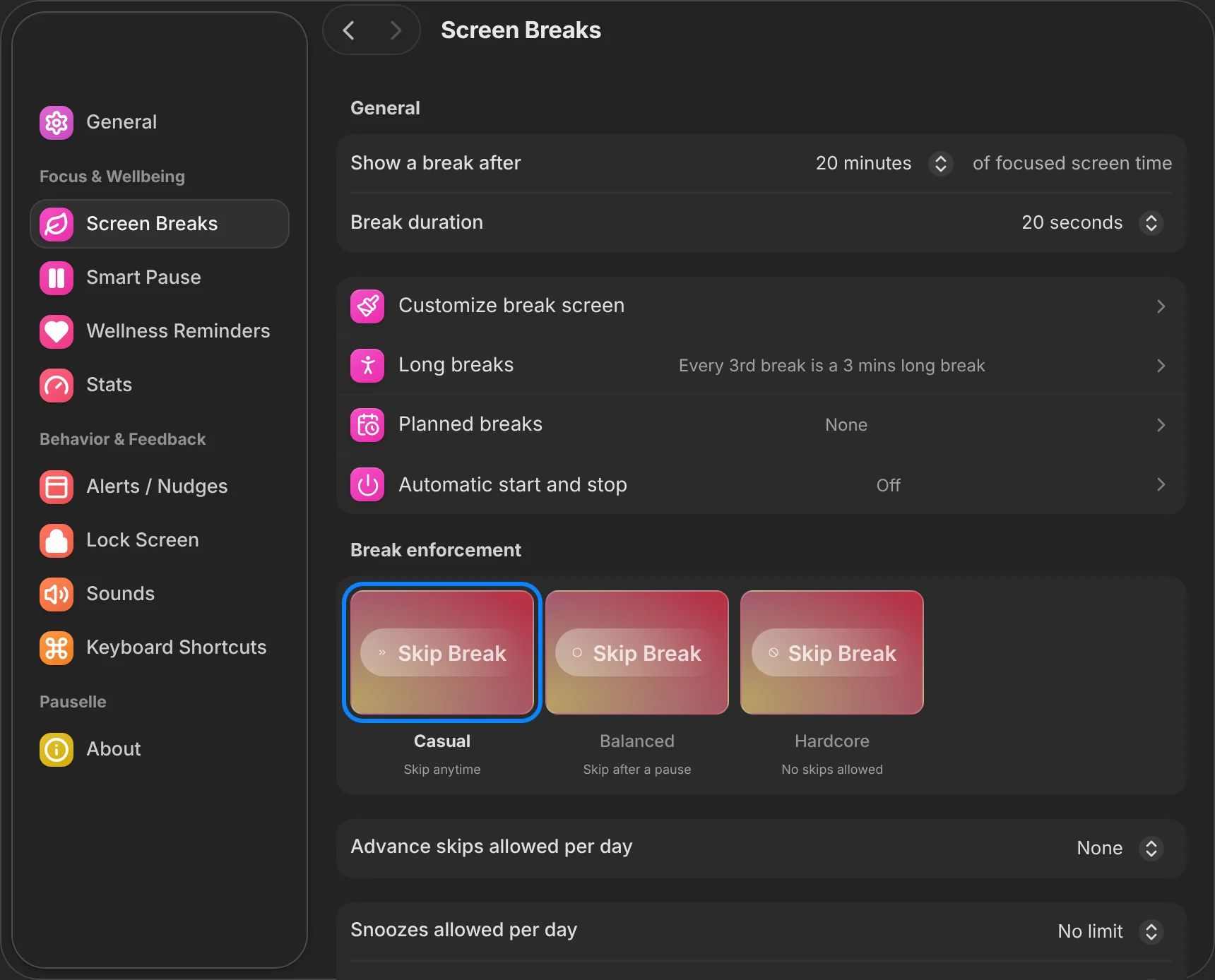
Choose how strict a break is
Some days you only need a reminder. On other days you want something that won’t let you skip.
Skip anytime.Skip after a pause.No skips allowed.
 Pauselle
Time for a breather
Find a distant spot to rest your eyes on while you wait
00:16Press Esc twice to skip the break
A rhythm for every kind of day
Pick a mode from the menu bar. Every timer can be adjusted down to the second.
- Screen breaks
- The 20-20-20 rhythm, on by default.
- Pomodoro
- Focus blocks with short and long rests.
- Free focus
- No schedule. Take a break when you decide.
- Long and planned breaks
- A longer rest every few breaks, or fixed times like lunch.
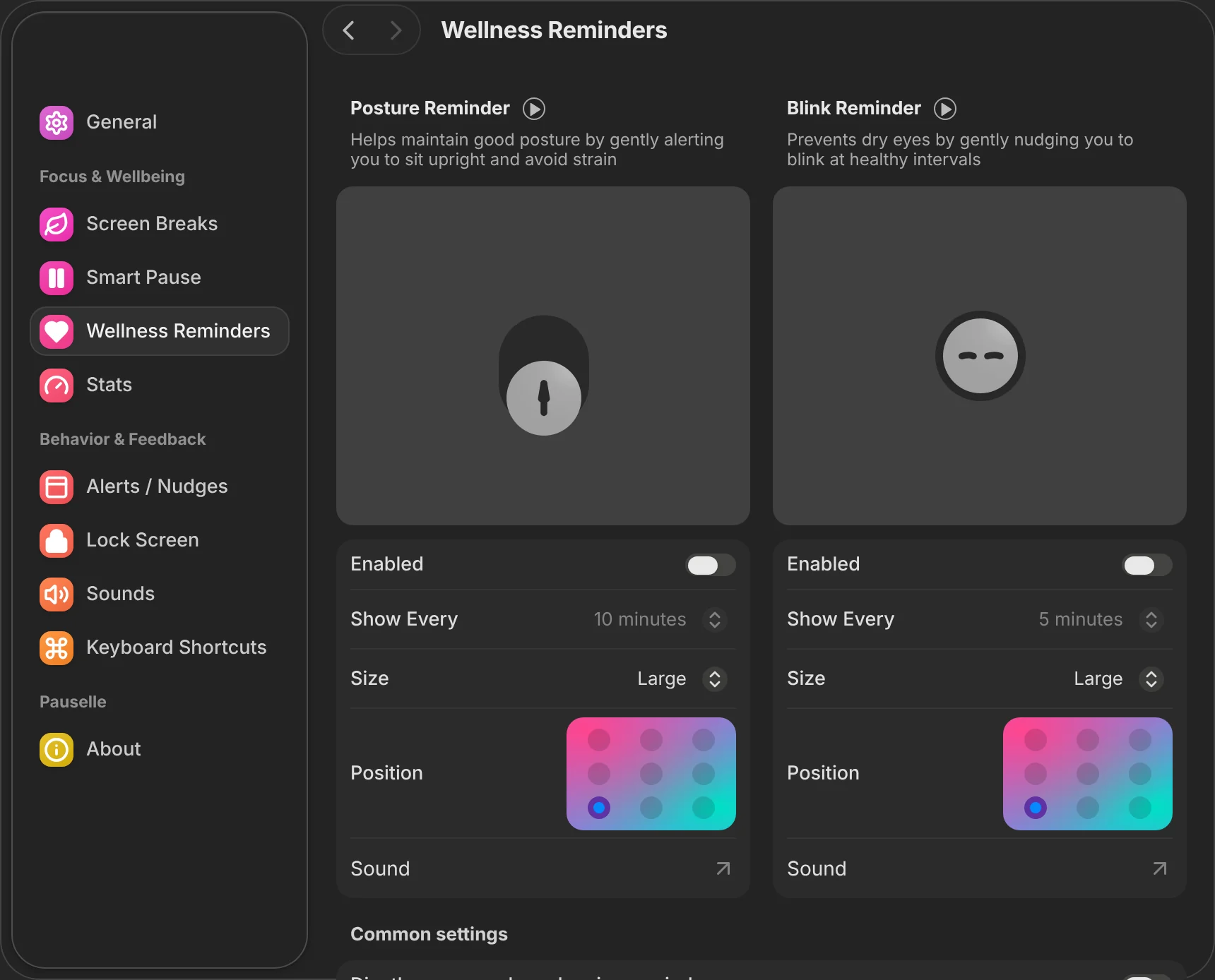
- Posture and blink nudges
- Small animated reminders, placed where you want them.
- Stats and Screen Score
- Screen time, breaks taken and skipped. Website stats are opt-in and keep only the domain.
Every detail is a setting
Working hours, launch at login, shortcuts, sounds and what shows in the menu bar, in a settings window that feels native to macOS.
Your habits stay on your Mac
No account, no server, no telemetry. Export everything as JSON, or erase it in one click.
- Stored on diskSettings and history live in a local SQLite file.
- Domains, not pagesOpt-in website stats never keep paths, queries or page content.
- Asks firstCalendar and Automation access are requested only when you turn those features on.
- Works offlineTimers and history never need a connection.
Take a breather.
Free for macOS 13 Ventura or later on Apple Silicon. Builds aren’t notarized yet, so macOS asks you to confirm the first launch.
- 1
Open the .dmg
Drag Pauselle into your Applications folder.
- 2
Allow the first launch
Right-click Pauselle, choose Open, then Open again. Or use System Settings, Privacy & Security, Open Anyway.
- 3
Still blocked?
Remove the quarantine flag in Terminal:
xattr -cr /Applications/Pauselle.app
Questions
Is Pauselle free?
Yes. The current preview is free to download. The app’s source code is private; downloads and release notes are public on GitHub.
Why does macOS say it “can’t be opened”?
Pauselle isn’t signed with an Apple Developer ID or notarized yet. The app is ad-hoc signed; follow the three install steps above to allow it once. Notarized builds are planned.
Does it work on Intel Macs or Windows?
Pauselle is built and tested on Apple Silicon running macOS 13 or later. Intel Macs and Windows aren’t tested yet.
Will it interrupt my meetings?
No. Smart Pause watches for microphone use, screen sharing, Deep Focus apps, games and the calendar events you choose, and waits until you’re done.
Does it update itself?
Not yet. Check the GitHub releases page or this site for new versions.